

Overview #
The issued invoices screen lists invoices that you have issued from Invoice entry: approve and issue. The grid lets you select several rows at once. Expand an invoice row to see its invoice detail lines in a child grid.
The Current, Reinstated and Deleted buttons in the screen header switch the invoices the grid shows. The toolbar and the Options menu hold the actions on this screen: print an invoice, print a summary invoice, reinstate invoices, delete invoices and assign a budget. An invoice type legend identifies the invoice types.
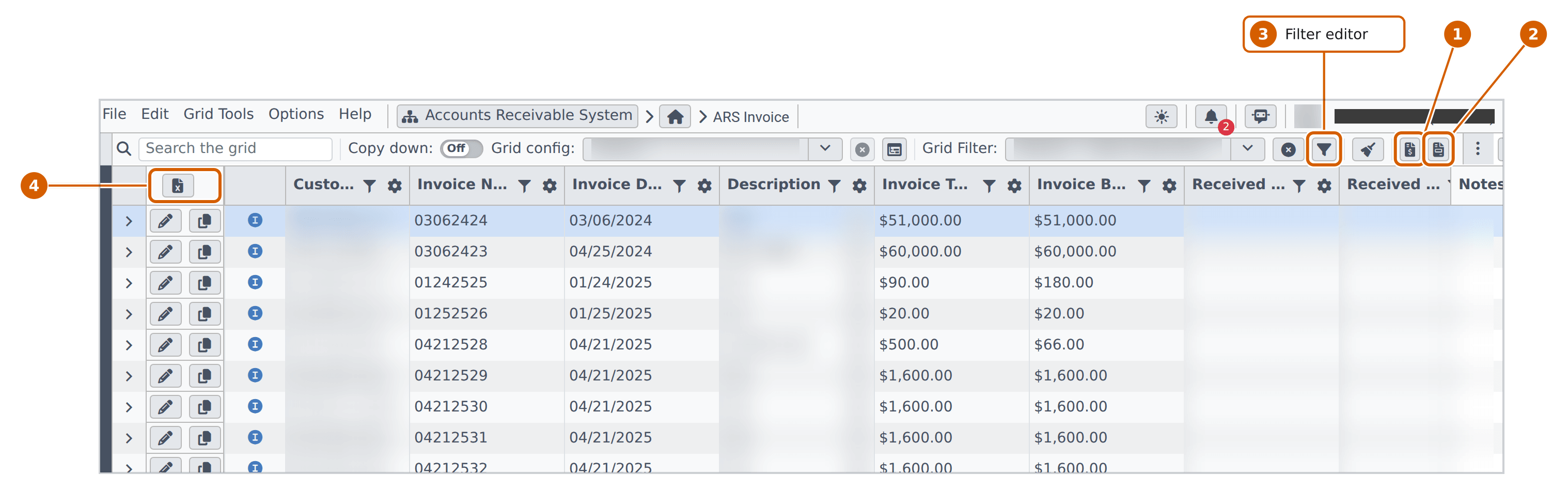
- Print invoice
- Print summary invoice
- Filter editor: the shared grid filter. Switching between Current, Reinstated and Deleted clears it.
- Grid columns
Before you begin #
- Sign in to IRIS10.
- Make sure you have access to Accounts Receivable > Invoice. The print, reinstate, delete and Assign Budget actions require access level 4. For details, see Security Administration: access levels by user.
- Issue the invoices from Invoice entry: approve and issue first.
- Know how to select rows, use filters and use configurations in the shared data grid. For details, see Data grid overview and basics.
Procedure #
Choose which invoices to view #
Open the issued invoices screen in the Accounts Receivable portal. The invoice grid opens. You can select several rows at once.
In the screen header, click Current to see open invoices. Any filter already on the grid is cleared. The grid shows invoices that are not payment complete, not canceled and not deleted.
Click Reinstated to see invoices that have been reinstated. Any filter already on the grid is cleared. The grid shows invoices marked Canceled.
Click Deleted to see invoices marked deleted. Any filter already on the grid is cleared. The grid shows invoices marked Deleted.
Expand an invoice row to see its invoice detail lines. A child grid lists the invoice's detail lines.
Print an invoice or summary invoice #
Select the invoice you want to print. If no invoice is selected when you print, the message
Please select an invoice to print.appears.Click Print invoice on the toolbar, or choose Options > Print Invoice. The Invoice Detail Report is produced for the selected invoice.
Note: This action requires access level 4. Polk County uses its own version of the Invoice Detail Report.
To print a summary instead, click Print summary invoice on the toolbar, or choose Options > Print Summary Invoice. The ARS Invoice Summary report is produced for the selected invoice.
Note: This action requires access level 4.
- If the message
Unable to print the current invoice. An email has been sent to support.appears, the report came back empty. IRIS10 has already notified support.
Assign a budget to invoice lines #
Select one or more invoices in the grid. If nothing is selected when you continue, the message
Please select at least one invoice to assign a budget.appears.Click Assign Budget on the toolbar. There is no Options menu item for this action. The Assign Budget window opens. It has a Select Budget: list (showing
Select a budget...) and Assign and Cancel buttons.Note: This action requires access level 4.
- In the Select Budget: list, choose a revenue budget. For details on revenue budgets, see Revenue budgets.
Click Assign. The budget is applied right away to every line of all selected invoices. No further confirmation is asked. The message
Budget assigned successfully to all invoice detail records.appears and the grid refreshes. If you did not choose a budget,Please select a budget.appears instead.If an error says the budget is not active, choose an active budget in the Select Budget: list. You can assign only active budgets.
- Click Assign again.
Reinstate an issued invoice #
Click Current. The grid shows current invoices.
Select the invoice or invoices to reinstate. Make sure none of them have payments. If nothing is selected when you continue, the message
Please select at least one item to reinstate.appears.Click Reinstate selected item(s) on the toolbar, or choose Options > Reinstate Selected Item(s). A confirmation appears:
Are you sure you want to reinstate the selected invoice(s)?with Yes and No.Note: This action requires access level 4.
Click Yes to continue. To cancel instead, click No. The issued invoice is marked Canceled and its lines go back to Invoice Entry as new unapproved lines. The grid refreshes and no success message is shown. The invoice now appears under Reinstated.
- If a message lists invoices that have payments (
Could not reinstate records because the following invoices have payments:), remove those invoices from your selection. - Click Reinstate selected item(s) again.
Open Invoice Entry to correct and reissue the returned lines. The lines keep their customer, organization, invoice number, activity, project, budget, contract, date of service, description, quantity, bill rate, unit of measure and comments.
Delete invoices issued in error #
Select the invoices to delete. Make sure none of them have payments. If nothing is selected when you continue, the message
Please select at least one item to delete.appears.Click Delete selected item(s) on the toolbar, or choose Options > Delete Selected Item(s). A confirmation appears:
This action cannot be reversed. Are you sure you want to delete the selected invoice(s)?with Yes and No.Note: This action requires access level 4.
Click Yes to continue. To cancel instead, click No. Delete removes the selected invoices (invoice, credit memo and counter sale invoices), and the grid refreshes.
- If a message starting
Could not delete records because the following invoices have payments.appears, remove the invoices it lists from your selection. - Click Delete selected item(s) again.
Reference #
Toolbar buttons and Options menu items #
All actions in this table require access level 4.
| Toolbar label | Tooltip | Options menu item | What it does |
|---|---|---|---|
| Print invoice | Click to print invoice | Print Invoice | Produces the Invoice Detail Report for the selected invoice. |
| Print summary invoice | Click to print summary invoice | Print Summary Invoice | Produces the ARS Invoice Summary report for the selected invoice. |
| Reinstate selected item(s) | Click to reinstate the selected invoice items | Reinstate Selected Item(s) | Cancels the selected invoices and returns their lines to Invoice Entry as unapproved lines. Refused for invoices that have payments. |
| Delete selected item(s) | Click to delete the selected invoice items | Delete Selected Item(s) | Removes the selected invoices (invoice, credit memo and counter sale invoices). Refused for invoices that have payments. |
| Assign Budget | Click to assign a budget to all child records | (none) | Sets one budget on every line of the selected invoices. |
View buttons #
| Button | Tooltip | Shows |
|---|---|---|
| Current | Display current invoices. | Invoices that are not payment complete, not canceled and not deleted |
| Reinstated | Display reinstated invoices. | Invoices marked Canceled |
| Deleted | Display deleted invoices. | Invoices marked Deleted |
Grid columns #
| Column | Notes |
|---|---|
| (untitled first column) | No heading shown on screen |
| Customer | |
| Invoice Number | |
| Invoice Date | Shown as MM/dd/yyyy |
| Description | |
| Invoice Total | Shown as currency |
| Invoice Balance | Amount still owed on the invoice, shown as currency |
| Received From | |
| Received By | |
| Payment Complete | |
| Payment Type | |
| Counter Sale Chk # | |
| Canceled | Set when an invoice is reinstated. Its lines go back to Invoice Entry. |
| Deleted | |
| Organization | |
| Created Date | |
| Created By | |
| Last Updated Date | |
| Updated By | |
| Notes | |
| Documents |
Invoice type legend #
| Legend entry |
|---|
| Invoice |
| Payments |
| Refunds |
| Counter sale |
| Credit |
Messages #
| Message | When it appears | What to do |
|---|---|---|
Please select an invoice to print. | Print invoice or Print summary invoice with no invoice selected | Select an invoice first. |
Unable to print the current invoice. An email has been sent to support. | The report came back empty | IRIS10 has notified support. Try again later or contact support. |
Please select at least one invoice to assign a budget. | Assign Budget with no invoice selected | Select one or more invoices. |
Please select a budget. | Assign clicked without choosing a budget | Choose a budget in Select Budget:. |
Budget assigned successfully to all invoice detail records. | Assign Budget succeeded | None. |
Specified … is not active and may not be assigned. | The chosen budget is inactive | Choose an active budget. |
Please select at least one item to reinstate. | Reinstate with no invoice selected | Select one or more invoices. |
Are you sure you want to reinstate the selected invoice(s)? | Reinstate confirmation | Click Yes or No. |
Could not reinstate records because the following invoices have payments: | A selected invoice has payments | Remove the listed invoices from your selection. |
Please select at least one item to delete. | Delete with no invoice selected | Select one or more invoices. |
This action cannot be reversed. Are you sure you want to delete the selected invoice(s)? | Delete confirmation | Click Yes or No. |
Could not delete records because the following invoices have payments. Please remove them from your selection and try again: | A selected invoice has payments | Remove the listed invoices from your selection. |
Tips and notes #
Important: You can't reinstate or delete an invoice that has payments. Remove or correct the payments first (see Cancelling payments, refunds and credit memos), or leave those invoices out of your selection.
Important: Assign Budget applies to every line of every selected invoice as soon as you click Assign. Nothing asks you to confirm, so check your selection first.
Note: Deleting a counter sale invoice also removes its counter sale payment records. Deleting a credit memo also removes its credit payment records if they haven't been applied to a payment.
Tip: Use Reinstate, not Delete, when an issued invoice only needs correcting. Reinstate sends the lines back to Invoice Entry so you can fix them and issue them again.
Note: Clicking Current, Reinstated or Deleted clears any filter already on the grid. Apply your filter again after you switch views. For details, see Grid filters.
Note: The print buttons print one invoice at a time. Select only the invoice you want before you click Print invoice or Print summary invoice.